Category: Apple

Macs and stuff

ANDIY - the Art of Not Doing It Yourself

The best way to learn about car maintenance, I’ve always felt, is the way I did it in my youth: have cars cheap enough and elderly enough to need regular repairs… and not enough money to pay anyone else to fix them for you. My first three cars combined cost me less than my current phone, and, while it’s been a long time since I last stripped down a carburettor or replaced a leaf spring, it’s pleasing to know that, should the need arise again, I wouldn’t be completely unprepared. (Actually, now I come to think of it, the likelihood of either of those particular needs arising is becoming rather remote, but you get the idea.) These days, I tend to pay someone else to fix the car, but at least I can sometimes sound sufficiently knowledgable to dissuade them from ripping me off!

Often, that’s the pattern of growing up. You prove to yourself in your youth that yes, you can hang wallpaper or lay a patio, and you go to bed with a sense of achievement and the satisfaction of saving lots of money. As you get older, sometimes, the satisfaction comes from being able to afford a professional to do it, not, of course, because you are helpless or incompetent -- you’ve proved twenty years ago that you aren’t -- but just because you have more important things on your plate right now. And, actually, the professional did rather a good job, you have to admit…

When the job might be deemed to fall within your own profession, however, it’s more of a struggle. I have, for much of what might laughingly be called my career, earned my daily bread by writing software, or setting up companies in which other people can write software, and I greatly enjoy doing so.

So, while I have no desire even to attempt the creation of, say, another Photoshop or Excel -- I have more important things on my plate, you understand -- I have sometimes been reluctant to pay for simpler utilities because I feel that I really ought create the same functionality myself, just as soon as I get around to it.

Well, a couple of recent purchases for my Mac have convinced me that this is often a foolish attitude. If someone has gone to the trouble of creating a nicely polished utility that does just what you need, it may be worth a few bob to tide you over until you get around to building your own string-and-sealing-wax version. Who knows, you might find the (other) professionals did rather a good job…

Hazel

The first of these is Hazel, a utility that monitors folders in the background and performs actions on the files in them, based on certain rules. It’s the sort of thing any decent programmer might dismiss as being for those poor sods who can’t throw together a cron job, folder action and a bit of Perl when they need it. And actually, the idea of monitoring a filesystem as a way of initiating tasks is not, perhaps, a natural one for computer scientists, who would generally think of more efficient ways of kicking off a process. But it can be incredibly handy, starting with simple things like making sure your desktop or your downloads folder doesn’t become too cluttered: Hazel can file stuff away in neat subfolders (or the Trash) if it’s been hanging around there too long.

Then you listen to podcasts like this one and this one, and you realise that when you scan a document into whichever folder your software cares to dump it, Hazel rules can pick it up, send it to your OCR program if needed, rename it to include today’s date, and then, if the OCRed content includes the words ‘HSBC’ and ‘statement’, file it away in the appropriate folder where you keep your financial records. It’s like putting a bit of paper in your out-tray and having a secretary pick it up, classify it appropriately and file it away in your filing cabinet for you. Nice.

Hazel becomes especially powerful when combined with Dropbox, where things you drop in a folder on your laptop while away can be handled by Hazel on your desktop back at home. You need to get into the mindset, so go and find out what other people are doing with it, and you’ll start to realise what it can do for you.

Arq

Arq is an off-site backup program. There are plenty of those around - Carbonite, Crashplan, Backblaze, etc. But this has a couple of key differences. Firstly, it’s not a service, it’s an app purchase. You buy it once, and you use your own Amazon S3 account for the storage. The format in which it’s stored is fully documented. You can specify your backup budget -- “I want my home directory on this machine not to cost me more than $8/month” -- and Arq adjusts the amount of history it stores to keep within that figure. And if you have several machines, or if you provide IT support for your family and they’re all happy to backup to the same Amazon S3 account, you can check up from one machine on the backup status of the others. Finally, it’s just been updated to allow use of the new Amazon ‘Glacier’ storage. If you’re willing to put your data here (where it may take a few hours to get it back), it’s an incredibly cheap backup. If you have on-site backup as well and this is just for real emergencies, Glacier may be a good option. Either way, Arq handles it nicely.

Day One
For the last six years or so, I’ve been keeping a ‘journal’. (For younger readers, a journal, or diary, is like a Facebook or Twitter account but without any followers. Huh?) Mine's not really a diary, so much as a cross between a lab notebook and a set of Post-It notes stuck on the screen: odd notes jotted down, URLs, booking references, phone numbers, snippets of code… but it’s very valuable and I search it regularly to jog my memory. I used to do this in a big folder full of text files, named according to the day concerned, and a set of keyboard macros and editor configurations to make it quick, easy and relatively nice looking. Then I discovered Day One, a journalling app for the Mac, iPhone and iPad (it keeps them all in sync), which makes it even quicker, easier and much nicer looking than my system. Its format is also reasonably straightforward, so I was able to import my six years of past notes, and can be pretty confident of getting everything out again if needed. It has a feature which I thought would be irritating but am surprised to find I rather like: it can pop up a little box in which you type your current activities or thoughts and then just hit Cmd-Enter to save. You can set it to do this a given number of times per day - three, in my case - and it's a very low-overhead way to keep a track of what you were doing and when.

All of the above come highly recommended - and, for the record, I have no connection with any of them other than being a happy customer. Feel free to comment with thoughts on any of these, or indeed tales of any other ways in which you are becoming a skilled ANDIY practitioner...
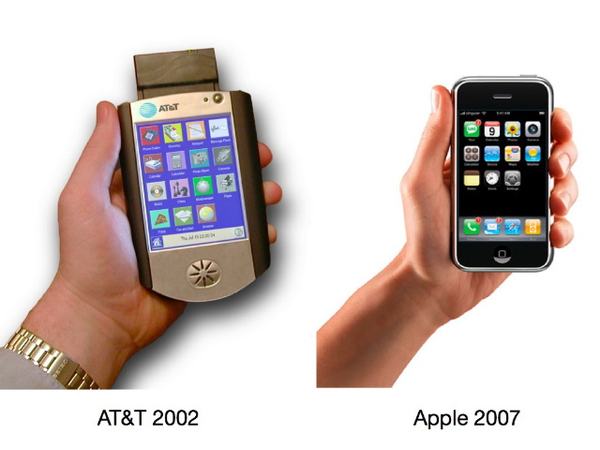
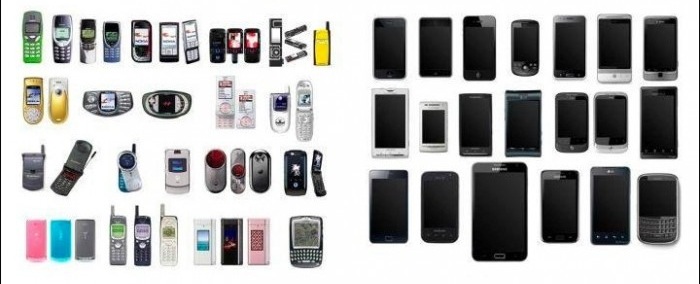
Who should really be suing Apple?

Dickon's comment on my last post reminded me of another post from four years ago.

Imitation is the sincerest form of flattery, they say, but it can also be the most expensive.

Dear Apple, a billion dollars would be nice, but I think the Broadband Phone team would probably settle for some nice new MacBook Pros...

:-)

How you can actually find things with Spotlight

Mac tip of the week...

The Spotlight search engine is a really useful feature of Mac OS X, providing an easy way to open your files, email messages etc. But suppose you want to do something other than open them: how do you find out where they actually are? Is it showing you the copy on your internal drive, or your external drive? What other things are in the same folder? Can I copy it onto a flash drive?

A quick note for new Mac users: the 'Option' key is labelled 'Alt' on some keyboards.

Keep the customer notified

Here’s a handy utility for those using Mountain Lion’s new Notifications system (something I find I rather like despite never really getting on with Growl).

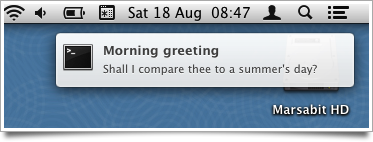
It’s called ‘terminal-notifier’ by Eloy Durán, and it lets you send these from the command line. So, for example:

   $ terminal-notifier \
     -message “Shall I compare thee to a summer’s day?” \
     -title “Morning greeting” -execute “open http://bbc.co.uk/weather/2653941”

This pops up a little notification, and clicking on it will take you to the BBC weather forecast for Cambridge.

You could put the command all on one line - I’ve just split it up with backslashes for readability. It’s easy to install terminal-notifier from the command line with:

  $ sudo gem install terminal-notifier

Now, as an illustration of why it can be useful, I wanted this for a particular purpose:

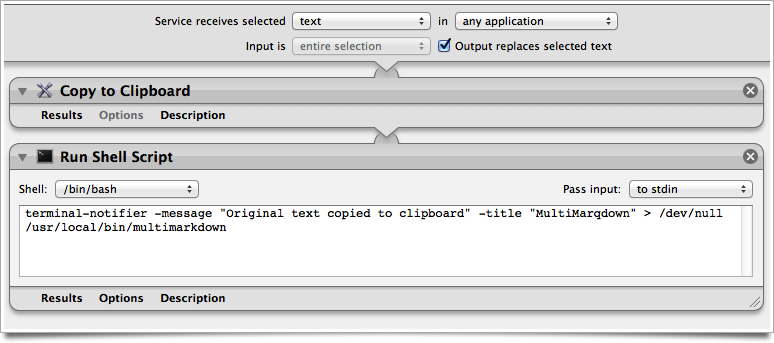
I’ve been experimenting more and more with Multimarkdown, since so much of what I write ends up in HTML, and the markdown syntax is a convenient way to create it. I have an Automator service which takes the currently selected text, for example in a blog post text-entry field, parses it as Markdown, and replaces it with the HTML equivalent. I’ve assigned it a keystroke, so typically I’ll just do Cmd-A to select everything I’ve typed and Ctrl-Alt-Cmd-M to convert it to nice HTML. Very handy. It’s how I wrote this.

Just occasionally, however, I might want to go back to the Markdown version, so before conversion the selected text is also copied into the clipboard. This is the kind of quick temporary backup that becomes second nature if you have a clipboard history utility. But it’s easy to forget this has happened.

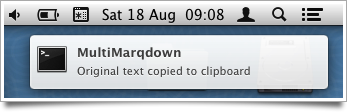
Now, I can just add a quick extra line in the automator script and I get a little pop-up to remind me, which vanishes again after a few seconds:

Thanks, Eloy!

Here's what the Automator service looks like, in case anyone wants to do something similar:

Applications Open

A guy who worked on Mac repairs and maintenance told me a good way to test whether a Mac's hard disk is working reliably. "Oh", he said on the phone, "you can kinda stress-test it by opening the Applications folder and doing Cmd-A Cmd-O".

It took me a moment to click just what he was saying: Cmd-A selects everything in the folder. Cmd-O opens things that are selected. In the case of apps, it will run them. So these two quick keystrokes will try to launch, simultaneously, every app installed on your machine.

"It usually takes 5 minutes or so, depending on the machine", he continued. "But if there's something wrong with the system this will usually find it." Yes, I said, I imagined it would.

Now, I admit I haven't tried this with my machines yet, but I did try it last time I was in the Apple store. And it's a really good way to demonstrate the difference between hard-disk- and SSD-based machines!

Two things worth knowing if you try this experiment:

  • One of the things that will open at some point in this process is Time Machine. So your world will disappear into a star field until you close it!
  • Quitting 30 or 40 apps can be a pain unless you know the Cmd-Tab trick: if you're doing Cmd-Tab to switch between apps, you can tap 'Q' while still holding down Cmd to quit the app whose icon is currently highlighted. Typing Q lots of times is a good way to quit lots of apps quickly.

Customise app defaults with AppleScript

Nobody likes AppleScript. Well, almost nobody. It's an attempt to make a programming language look like a natural language, which means that knowing what constitutes valid syntax in any given situation is almost impossible. I once suggested that what the world really needs is a Perl-to-Applescript translator, because Perl is a language that's pretty easy to write but impossible to read, and AppleScript is easy to read but impossible to write. The syntax is a bit dependent on the apps with which you're trying to interact, too, and the debugging options are exceedingly limited.

But the most annoying thing is that, on occasion, it's exceedingly useful, and there aren't really good alternatives for the kind of things it can do.

So just in case anyone out there is googling for this kind of thing, here's how I made it change the default options on a dialog box that I use every day.

I've been inspired by David Sparks's e-book Paperless, and my new-found fondness for the kind of things you can do with the Hazel utility, to get a better, more automated workflow for scanning in documents.

A key component, of course, is that you want them to be OCRed so that you can search for them, or search within them, later. I want something that does this automatically, or can be made to do it automatically, when a scan ends up in a folder on my disk, with minimal manual intervention. Good OCR programs are fairly costly on the Mac - Abbyy FineReader, at £79, is generally agreed to do the best OCR job, but the Mac version is not very scriptable. PDFpen, at £47, does a reasonable job and has better scriptability, and if I were starting now I'd probably use that.

But a while ago I splashed out on NeatWorks, which has good OCR, plays nicely with my wonderful ScanSnap scanner, and provides a complete filing system for my documents, with flexible metadata options. It's a nice package. But the problem is that I no longer want a complete filing system for my documents - I want to do that myself.

So for the moment I'm using NeatWorks to capture my scans, OCR them, enter some metadata and then export them as PDFs to the folder where Hazel and other things take over. They typically stay in NeatWorks for about a minute.

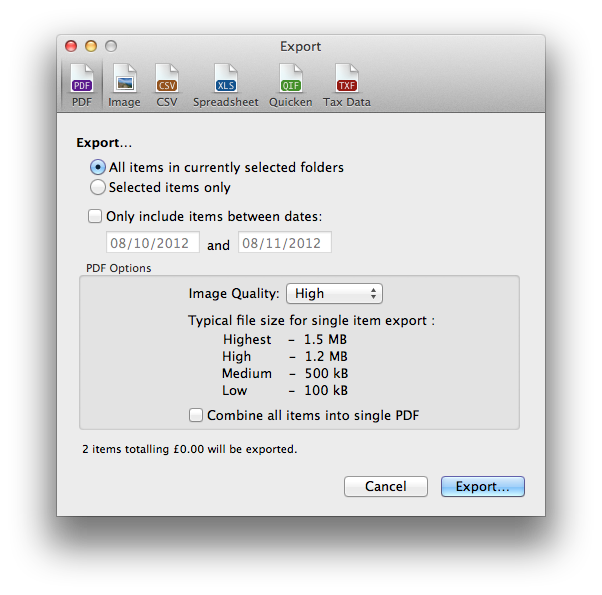
OK - that was a long run-up to explain why I regularly - often several times a day, do File > Export... and get this dialog:

At this point I can almost just hit [Return], except for one problem: the default is to export all the items in the currently selected folders and I just want to export the thing I last scanned. So every time I do this, I have to switch from keyboard to mouse, click the little radio button by 'Selected items only' and then carry on.

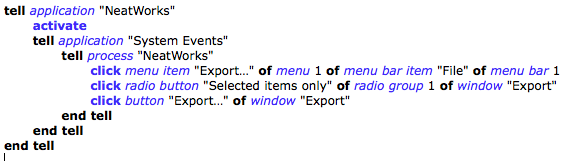
AppleScript to the rescue! I used Automator to create a service that just applies to NeatWorks and runs the following AppleScript:

This runs 'File > Export...', clicks the appropriate radio button, and then clicks the Export... button.

Finally I used the Keyboard section of System Preferences to assign a keyboard shortcut to this service.

Now, I drop some paper into the scanner and press the button on the front. NeatWorks pops up and OCRs it. I type in a title, document date and any other keywords I fancy, then just hit my magic keystroke and check the name and folder before hitting return to save.

At that point, Hazel takes over and does something like "if this file was created by NeatWorks, and has a name containing the word 'Telemarq' and the word 'receipt', then file it away in the appropriate folder of my receipts directory with a suitably reformatted filename".

Cut and paste comes to the Mac

Well, OK, the title's a little misleading, but here's a very handy hint for anyone running Lion or later. It's to do with moving files.

Though the Finder has, for a very long time, supported the copying and pasting of files from one folder to another, it has never allowed cut and paste. I could never fathom why something so simple wasn't in there until I realised that, actually, there is a problem with implementing the concept cleanly: normally, when you cut things, they disappear. What happens if you cut a file but never paste it? Especially accidentally? (What happens on Windows? I forget...)

Still, this was an annoying omission, particularly if you're used to Windows, or if you have a small display without much space for dragging things about.

Well, now you can do it. Instead of the normal cut & paste keystrokes (Cmd-X, Cmd-V) you do a copy and a kind of alternate paste (Cmd-C, Alt-Cmd-V). Intuitive? No. But I guess it makes a kind of sense.

Thanks to the excellent David Sparks for the hint.

Obligatory Mac Utilities

There are a handful of utilities on my Mac that I use all day, every day. I’ve written about most of them before over the years -- try the search box on the right -- but since people liked some of my past posts about favourite iOS apps, I thought I’d gather these into a quick list here.

  • Dropbox
    But then, you could have guessed that one. It’s on everybody’s list. ’Nuff said.
  • LaunchBar
    Unless your needs are very minimal, you need something to launch applications and utilities without having to burrow through folders in the Finder. Some people just use Spotlight, but there are quicker and more powerful options. In the past, I tried most of them but settled on LaunchBar and, despite occasional experiments with others, and though I use a tiny fraction of its facilities, I’m still using it 10 years after first installing it.
  • A clipboard history utility
    These give you the ability to store more than one thing in your clipboard. Cut, Copy and Paste will work as expected, but you have the option to go back and paste the thing-before-last that you copied. Or things from yesterday. This is one of those habits that you may never get into; it took me a long time to get used to the fact that I could copy a quote from a web page, and the author’s name, and the URL, and then go to my blog and compose a post with all the information at hand. But it’s very liberating: you can stick stuff in the clipboard without worrying about what it’s overwriting, and the history becomes a sort of temporary scratch space, like the back of an old envelope on your desk, in which you can put all sorts of short-term stuff. There are several utilities about, but LaunchBar comes with a good one built-in, so I just use that. Trust me, train yourself to do this and make sure the keyboard shortcut is the same on all your machines. I use alt-cmd-L, which is quick to type, and has become as instinctive as the cut, copy & paste keystrokes.
  • TextExpander
    This lets you type just a few characters, in almost any app, and have them converted instantly into a much larger chunk of text, optionally with lots of clever extra features and options. If you’re me, for example, it doesn’t take long to discover that ‘Quentin Stafford-Fraser’, what with its punctuation and capitals, can be a tedious thing to type many times a day, and to type ‘qqsf’ and have it automatically converted is a much better option. My own email addresses, which these days are often my usernames on various services, each have their own three-letter abbreviation, and so forth.
    I first used this back when it was called Textpander, and was free, and when that changed, for a long time I resisted paying $35 for something that just typed a few keystrokes for me. Until, that is, I realised just how many keystrokes it had typed for me -- over 38,000 on this machine, for example (it keeps a record). I’m not sure over what time period that is, but that’s just on one of my machines, and I’m not a heavy user.
  • SuperDuper
    It clones your disk. Efficiently, flexibly and reliably, and if you're cloning your main system disk, it will make the result bootable. I don't use it often, but I do it without fail every single time I'm about to do a major operating system upgrade, so it's had a lot of use recently!
  • Scrivener
    Not a utility, this one, but a substantial application. They used to say of Emacs, that it was not so much a text editor, more a way of life. Well, Scrivener inspires almost religious devotion amongst its enthusiasts. It is a word processor designed for professional writers -- a category into which I certainly do not fall -- but I’ve become rather fond of it for gathering together information associated with any project, and if I were to write anything substantial, it’s certainly what I’d use. I could write a great deal about Scrivener, but others have done so in numerous places, so I’ll just mark it as a favourite, and encourage you to investigate for yourself. There are plenty of screencasts, podcasts, books and many other resources to tell you about it and why it's so yummy.
  • 1Password
    This is on all my devices, and in the toolbar of all my browsers on my Macs. How do people live without this (or something like it)? If you live without it by using the same password on many websites, then I hope you're spending the money on medication instead to help you sleep at night.